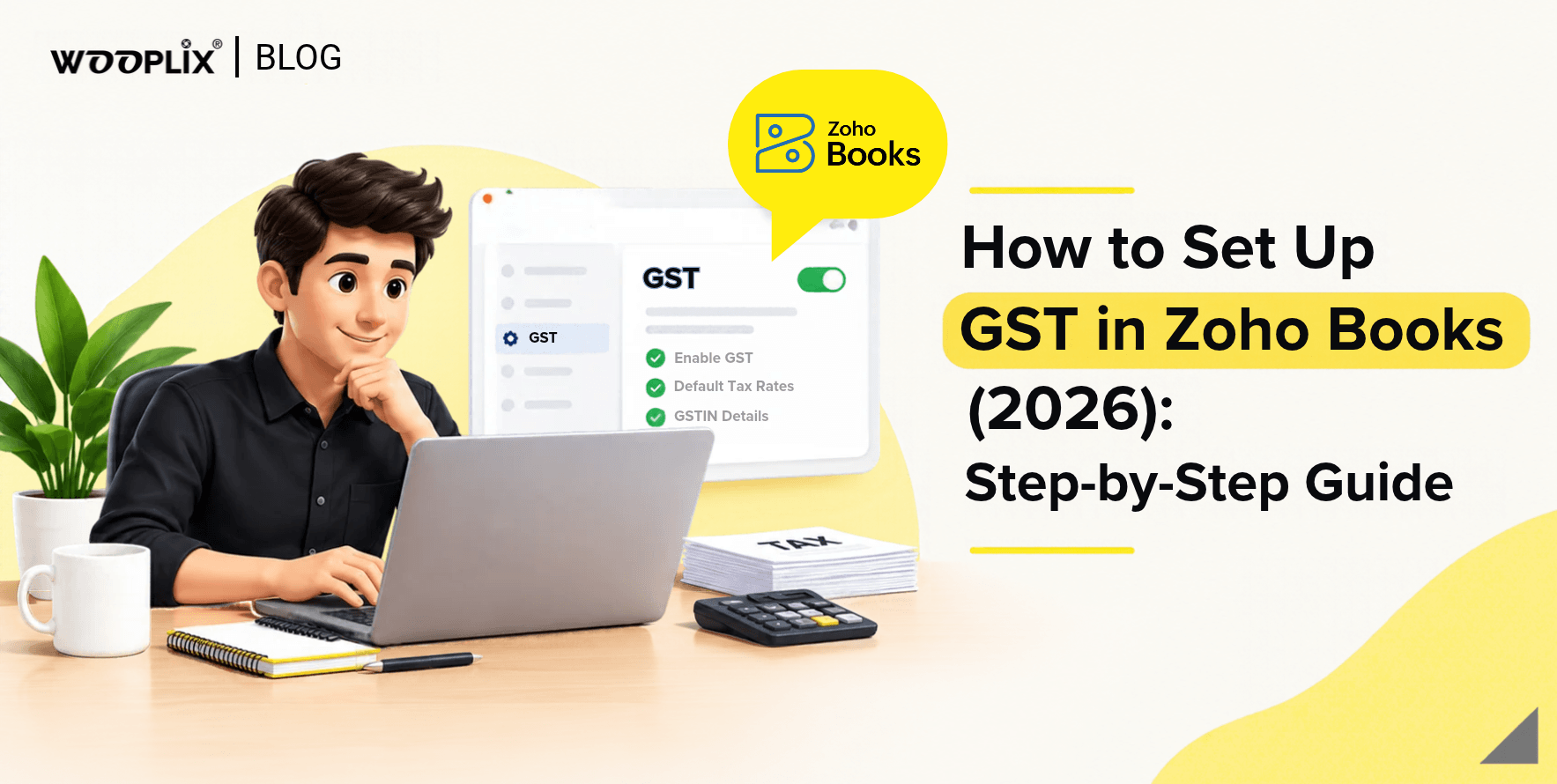
How to Set Up GST in Zoho Books (2026): Step-by-Step Guide

Quick answer: To set up GST in Zoho Books, go to Settings, open Taxes and Compliance, enable GST, enter your GSTIN and business details, review your tax rates, add HSN/SAC codes to your items, and then create GST-compliant invoices. This takes about 15 to 20 minutes for a new account.

Introduction

If you run a business in India, you must follow GST rules. Every sale, every purchase and every return has to be correct. Doing all this in Excel takes a lot of time, and mistakes are easy to make. That is why many Indian businesses use Zoho Books for their accounts.
But Zoho Books only helps you if GST is set up the right way from the start. A wrong GSTIN, a missing HSN code or a wrong tax rate can cause problems later. This guide shows you each step in simple words, so you can start sending invoices with confidence.
How to Set Up GST in Zoho Books (2026)_ Step-by-Step Guide

Why Use Zoho Books for GST?

Zoho Books is a cloud accounting software built with Indian tax rules in mind. Once GST is configured, it automatically decides whether to apply CGST and SGST (for sales within your state) or IGST (for sales to another state). It also stores your GSTIN details, tracks input tax credit and generates reports you can use for your returns. That means fewer manual errors and a lot less time spent on compliance.

Before You Start: What You Need

Keep these things ready:

  • Your GSTIN and business name
  • Your registered address and state
  • Your GST registration date
  • How often you file returns (monthly or quarterly)
  • HSN codes for your products and SAC codes for your services
  • A Zoho Books account with India as the country

If you have all this ready, the setup can take less than an hour.

Step 1: Enable GST in Zoho Books

Log in to your Zoho Books account and open Settings. Under Taxes and Compliance (called Taxes in some versions), select GST Settings. Switch on the GST option and click save. If you are setting up a fresh organization, Zoho Books may also ask you for GST details during onboarding, so you can complete this step there.

Step 2: Add Your GSTIN and Business Details

Now enter your business information:

  1. Add your GSTIN. Zoho Books checks the format, so a wrong number is caught early.
  2. Fill in your legal name and trade name exactly as per your registration certificate.
  3. Select your GST registration date.
  4. Choose your business type. If you are under the composition scheme, select that option, since the invoicing rules are different.
  5. Turn on reverse charge if your business deals with transactions where you pay the tax instead of the supplier.

Getting this part right matters because these details appear on every invoice you send.

Step 3: Review and Configure Your Tax Rates

Zoho Books comes with standard GST rates already added. Open the tax list under Taxes and check that the rates you use are present. GST slabs have been revised by the government in recent times, so always confirm the current rate for your product or service on the official GST portal before applying it.
If a rate is missing, add it manually. You can also create tax groups, such as a combination of CGST and SGST, so the correct split is applied automatically. Choosing the right rate here saves you from corrections later.

Step 4: Add HSN/SAC Codes to Your Items

Every product or service you sell should have an HSN or SAC code. In Zoho Books, go to Items, open an item (or create a new one) and fill in the HSN/SAC field along with the tax rate. Once saved, the code flows into every invoice, estimate and bill that uses that item. Depending on your turnover, HSN reporting on invoices is mandatory, so do not skip this step.

Step 5: Update Customer and Vendor Details

Open each customer and vendor profile and add the following:

  • GST treatment, such as registered business, unregistered business, consumer, overseas or SEZ
  • GSTIN, if they are registered
  • Place of supply, which decides whether CGST/SGST or IGST applies

This is the most common area where mistakes happen. A wrong place of supply leads to the wrong tax type on the invoice, and that creates trouble during return filing.

Step 6: Create Your First GST Invoice

Go to Sales, then Invoices, and click New. Pick the customer, add items and check the tax summary. You will see the tax split shown clearly: CGST and SGST for same-state sales, or IGST for interstate sales. Review the totals and send the invoice by email directly from Zoho Books or download it as a PDF.
If your annual turnover is above the government threshold for e-invoicing, you will also need to generate an e-invoice with an IRN. Check the latest turnover limit on the GST portal and enable the e-invoicing option in Zoho Books if it applies to you.

Step 7: Enter Opening Balances and Bills

If you are moving from another system or Excel, add your opening balances for customers, vendors and input tax credit. Then record your purchase bills with the correct GST details of each vendor. This lets Zoho Books track your input tax credit properly, which reduces your tax payable later.

Step 8: Use GST Reports for Return Filing

Zoho Books provides GST reports such as the GSTR-1 summary and GSTR-3B summary, along with tax liability and input credit details. Review them before every filing period and match them with your books. You can also connect your GST portal account to prepare and file returns from inside Zoho Books, which saves a lot of back and forth. Reconcile your purchase data with GSTR-2B regularly so you only claim credit that is eligible.

Common GST Setup Mistakes to Avoid

  • Entering the wrong GSTIN or a trade name that does not match your certificate
  • Forgetting to add HSN/SAC codes to items
  • Selecting the wrong place of supply for customers
  • Using outdated tax rates after a government revision
  • Not reconciling purchases with GSTR-2B before filing

When Should You Take Expert Help?

If you have one GSTIN, a short product list and no need for e-invoicing, you can often set up Zoho Books yourself. But things get harder if you have many GSTINs, a long item list, data in Tally, or you want to connect Zoho CRM and Zoho Inventory. In these cases, an experienced Zoho partner can save you weeks of work and help you avoid costly mistakes.

Conclusion

Setting up GST in Zoho Books is easy when you follow the right order. Turn on GST, add your GSTIN, check your tax rates and HSN or SAC codes, update your customers and vendors, test your invoices, turn on e-invoicing if you need it, and match your records every month. Once this is done, your accounts run smoothly with much less manual work.
If you would like experts to do it for you, Wooplix is a Zoho Authorized Partner that has helped businesses in over 75 countries. Visit wooplix  to book a free consultation and get your Zoho Books setup done right the first time.

Frequently Asked Questions

Quick answers to commonly asked implementation inquiries.

Recent Posts

Follow Us

Scroll to Top
Wooplix transparent variant
Privacy Overview

This website uses cookies so that we can provide you with the best user experience possible. Cookie information is stored in your browser and performs functions such as recognising you when you return to our website and helping our team to understand which sections of the website you find most interesting and useful.